

Welcome to the ultimate guide to Fright, the spooky JasX game!
Fright is a thrilling game where you roam around in the dark, hunting for hidden treasure while avoiding, or pouncing on, other players. With different maps, fun props, and traps to dodge, there’s always something waiting around the corner.
This guide covers everything you need to get set up, learn the ropes, and pick up some sneaky tips and tricks along the way!
REQUIREMENTS
You will need the following:
- An RLV enabled viewer.
- JasX account and HUD
- An outfit setup
Getting Started
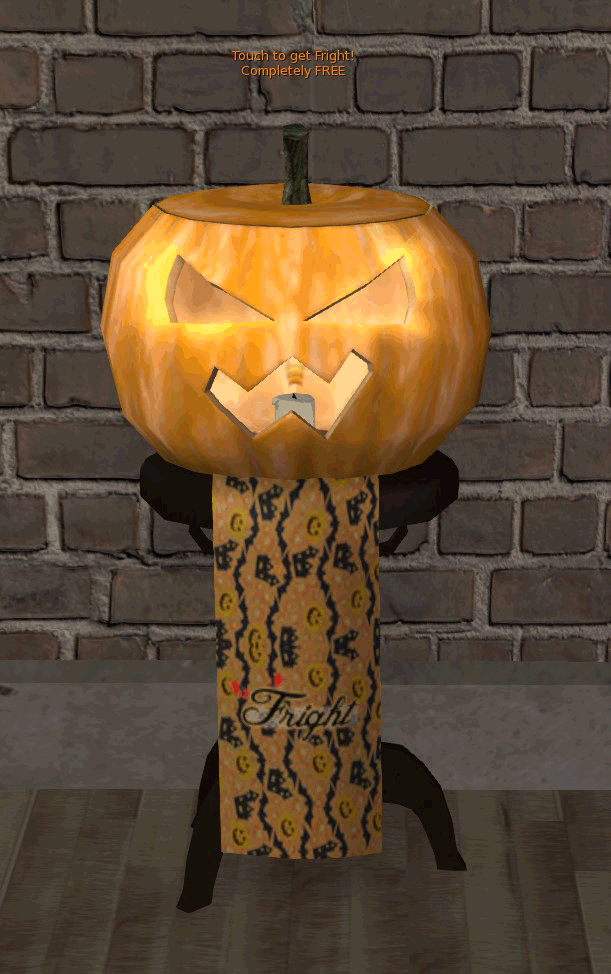
- Head over to the JasX Store at Quiddity.
- Click the Fright Pumpkin.
- Unpack the contents.
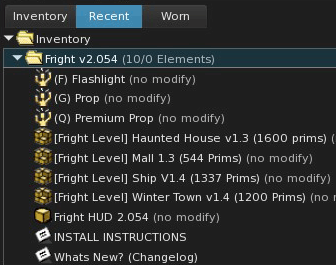
You’ll get a folder containing a few essential items:
- 3 Gestures — Be sure to activate all three before playing.
- 4 Maps — Free maps you can play Fright on.
- Fright HUD — You’ll need to wear this to play.
- Installation & Changelog notecards.
Automatically Managing Gestures
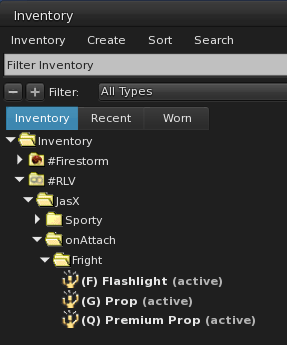
You can have the Fright HUD automatically enable and disable the gestures whenever you wear or detach it.
- In your JasX folder, create a new folder named
onAttach. - Inside it, create another folder named
Fright. - Put the three gestures into the Fright folder.
That’s it! The HUD will now handle the gestures for you.
Go ahead and attach the JasX HUD and Fright HUD, then enable the gestures if you haven’t already.
FINDING & JOINING GAMES
YCheck the Official Fright group to see if any games are currently being advertised. Just click, or paste the link below into your Second Life chat and join the group:
Alternatively, you can always host your own game!
Check out the Fright Hosting Guide for more information on getting everything set up.
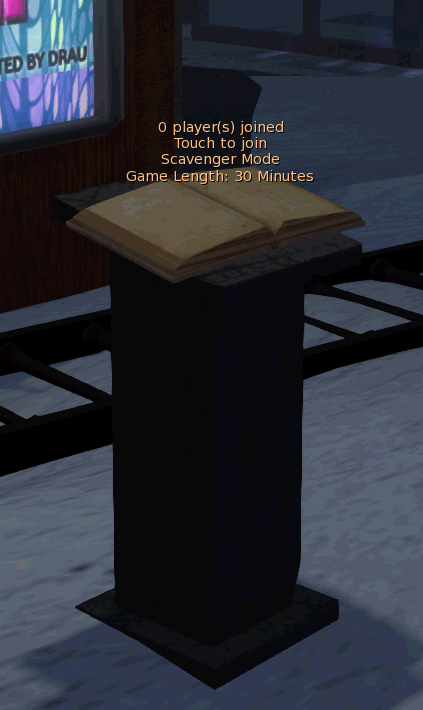
Once you’ve found a game, simply click the TOME (pictured) to join automatically.
You’ll know it worked when your surroundings go dark and your flashlight automatically attaches!
Depending on the map, the TOME might look like a book, computer screen, or sci-fi terminal. The hover text above it will always look similar.
FRIGHT HUD
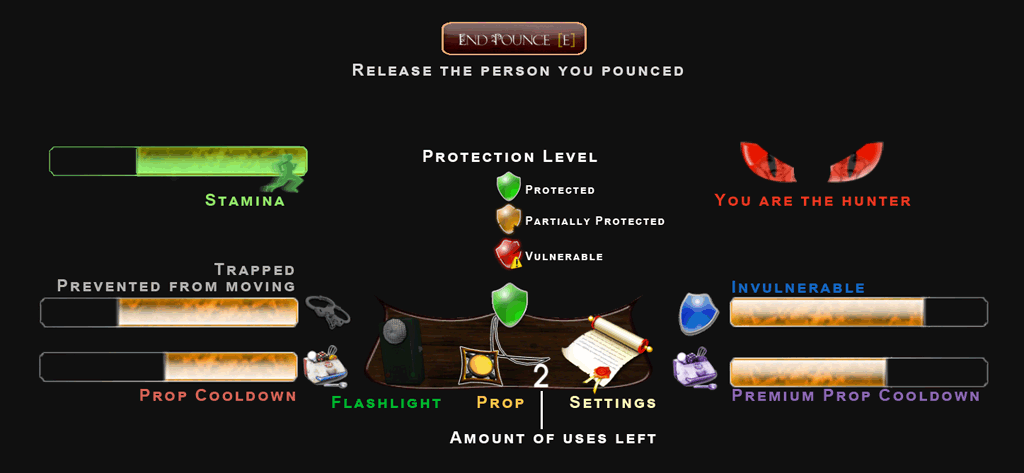
SETTINGS
When you first attach the HUD, you’ll want to tweak a few settings to make sure everything works the way you want. Just click Settings on your HUD to configure these:
- Toggle Penis/Vagina: Set this to match the parts you have. The JasX HUD should set this automatically.
- Toggle Adult: Turn this on if you want to allow adult animations and traps during gameplay.
- Toggle Escape: If another player catches you, this determines whether you can try to break free or have to wait for them to end the capture.
- Website: Opens the official Fright website in your browser.
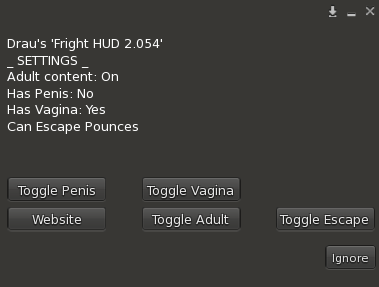
YOUR HUD EXPLAINED
Here’s a quick breakdown of what each indicator, bar, and button on your Fright HUD means:
- Protection Level: Shows your current protection and how easy you are to catch:
- Protected: No one can catch you unless they are the Hunter or use a specific prop.
- Partially Protected: You’ve lost some clothing, but the same rules still apply.
- Vulnerable: Anyone can catch you, even without a prop.
- Flashlight: Shows your equipped flashlight. Click it to quickly toggle your light on or off.
- Prop / Uses: Shows your current prop and how many uses it has left.
- Settings: Opens the menu for your adult, anatomy, and escape preferences.
- Trapped: You’re completely immobilized. This happens while catching someone, when you’re caught, or if you step into a trap.
- Invulnerable: A temporary safety period where you can’t be caught. This usually happens after escaping a trap or getting back up after being caught.
- Prop Cooldown: Shows how long until you can use your current prop again.
- Premium Prop Cooldown: Shows how long until you can use another premium prop.
- Stamina: Your energy bar. This determines how long you can run before needing to recover.
- Hunter Eyes: You’re the Hunter! You can catch anyone without a prop and get red night vision to help you track them down.
- End Pounce: Appears after you’ve caught someone and your Trapped bar finishes. Click it when you’re ready to let your target go.
CONTROLS
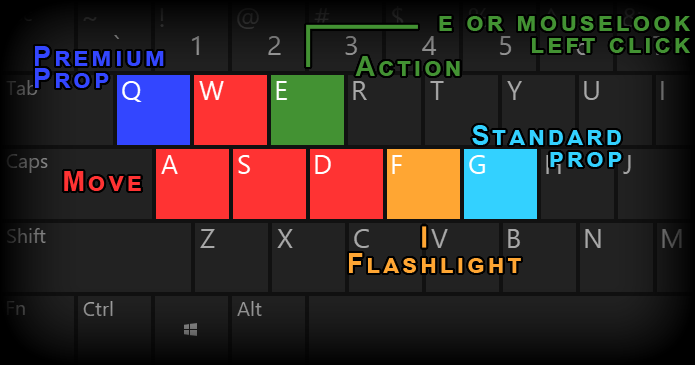
Controls & Movement
Fright can be played in either third-person or mouselook, though mouselook is highly recommended for the best experience!
Here are the default keys you’ll need:
- WASD: Move around. Double-tap W to run, but keep an eye on your stamina!
- F: Toggle your flashlight on or off.
- G: Activate your equipped standard prop.
- Q: Activate your equipped premium prop.
- E: Main interaction key. Use it to:
- Open doors
- Pick up props
- Interact with items around the map
- Catch vulnerable players
GAME MODES
Depending on the type of game being hosted, your objective will change. Here are the different ways you can play:
- Scavenger Mode: A treasure spawns somewhere on the map. Find it and safely bring it back to the TOME to win!
- Hunter Mode: Like Scavenger Mode, but one player is the Hunter. They can catch anyone on sight without needing props or waiting for defenses to drop.
- Hunter Tag: The Hunter changes whenever they catch someone. Get caught and you become the new Hunter. Basically, spooky Tag!
- King of the Hill: Find the treasure and hold onto it for as long as possible. The player who holds it for the most total time wins.
- Pouncematch: A free-for-all! Catch as many players as you can within 10 minutes. Whoever has the most catches when time runs out wins.
- Outbreak: One player starts as the Hunter. Every player they catch becomes a Hunter too. The last survivor standing wins!
GAMEPLAY
See the screenshots below for a step-by-step look at how a game progresses.
Understanding Protection
Your Protection Level determines how safe you are from being caught. Think of it like armor:
- Full & Partial Protection: Normal players can’t catch you. You must be caught by the Hunter or a specific prop.
- No Protection: You’re completely vulnerable and anyone can catch you. A broken shield icon will appear above your head to let others know.
- Losing Protection: You can lose protection by getting caught, stepping into traps, or interacting with certain map elements.
- Outfits: If you set up your outfit folders correctly, your clothing will visually reflect your Protection Level.
Exploring the Maps
Fright can be played on several different maps, and it can take a little time to learn your way around. Take some time to explore and get familiar with each one!
Check out the Fright Maps page for a look at the available arenas.
Props, Traps & Flashlights
There are plenty of useful props to find, dangerous traps to avoid, and upgraded flashlights to help you see in the dark.
- Find all the Props, Food & Flashlights here.
- Find all the Traps here.
Spectating Etiquette
Waiting for the next round or just watching the match? Keep these few things in mind:
- Stay well out of the way of active players so you don’t block them.
- Detach any HUDs you aren’t currently using to help reduce lag.
- Look around the area, as some maps have designated spectating zones!
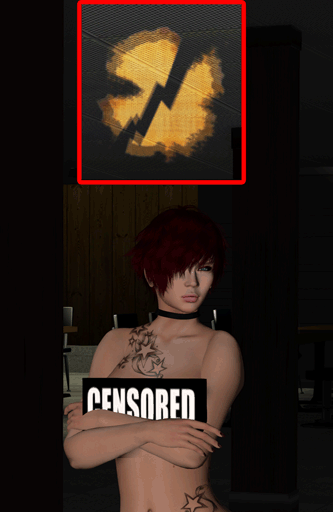
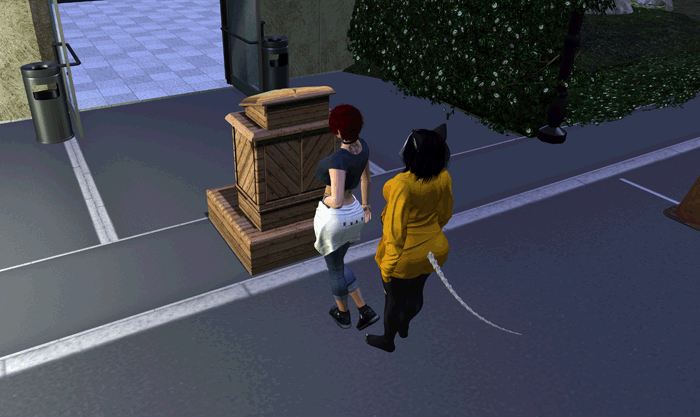
Start
When starting the game, you will be teleported to the start with everyone else playing the game.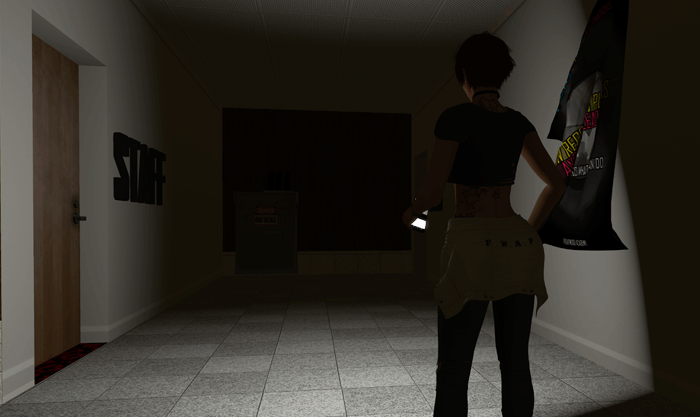
The Darkness
Walk around and use your flashlight to see in dark areas.
Press F on your keyboard or click the flashlight on your HUD to activate it.
Click here for a list of Flashlights you can find.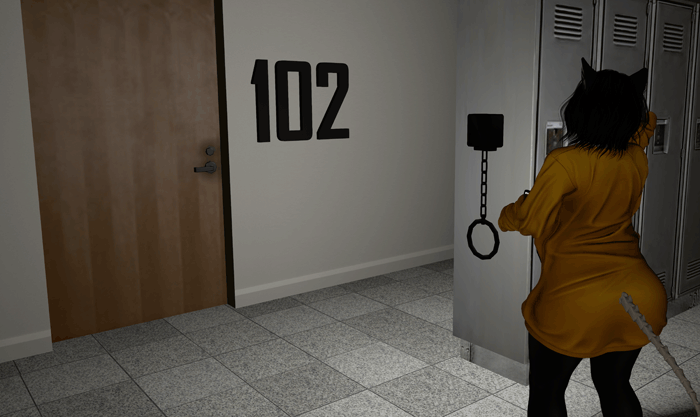
Doors and Levels
Open doors or pull levers to open locked doors.
Press E or mouseclick if you are playing in mouselook.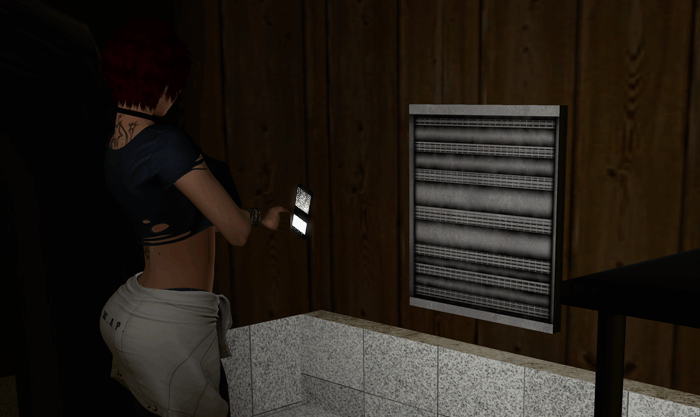
Navigate
Use airducts, ladders, teleporters that can be found around the map.
Press E to instantly move to the connected location.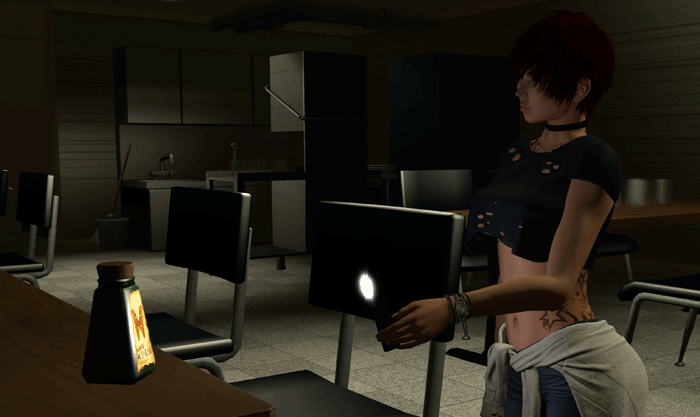
Props and Food
Pick up props to help you in general or to catch other players. Pick up food to help with your stamina.
Press E to pick up props and food. Press G or Q to use props.
Click here for a list of Props, Food and Flashlights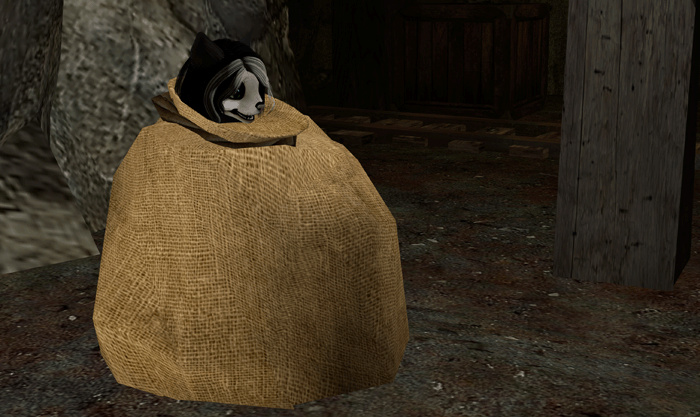
Traps
Avoid traps that will get you stuck for a short time and affect your protection.
Click here for a list of traps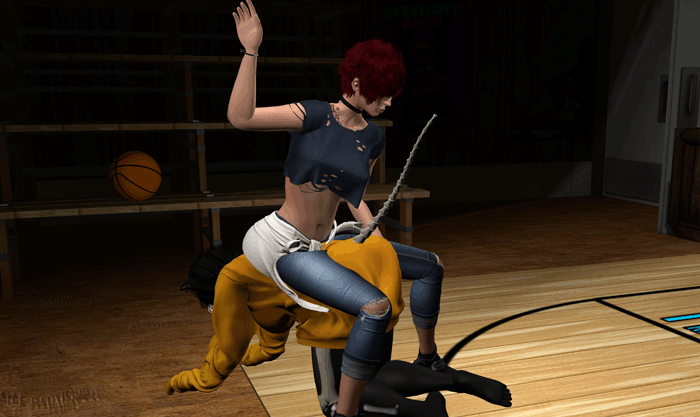
Catch
Catch other players, while avoiding being caught yourself.
If you have a prop, press G or Q, depending on the prop you have.
If a player has no protection, catch them by pressing E or click if you are playing in mouselook.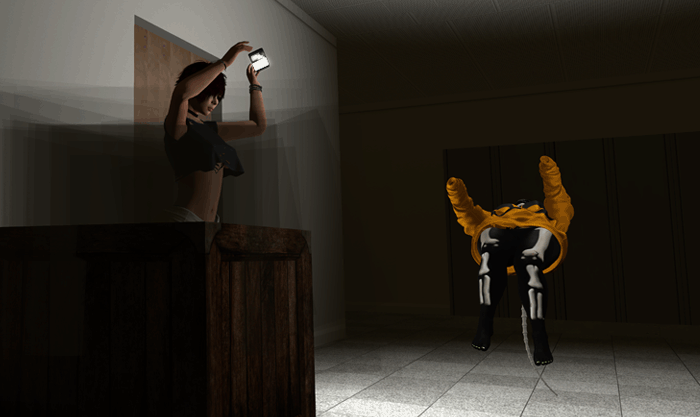
Ambush
Ambush other players by finding crates and jumping out at the right time to scare them off their feet.
These can be crates, lockers and coffins, depending on the map.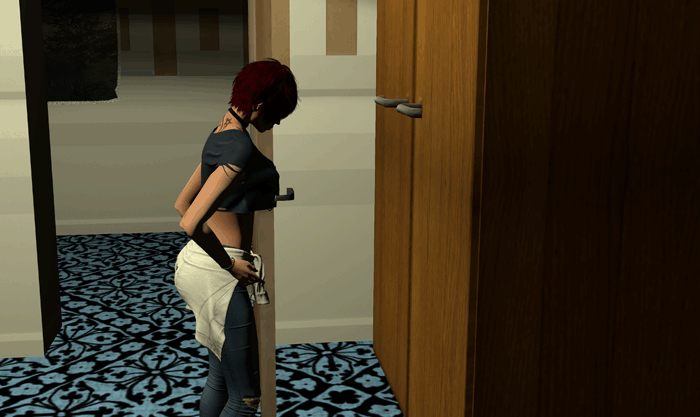
Clothes
Interact with dressers redress if you have no protection.
Press E to interact.
These can be dressers, clothing piles or lockers, depending on the map.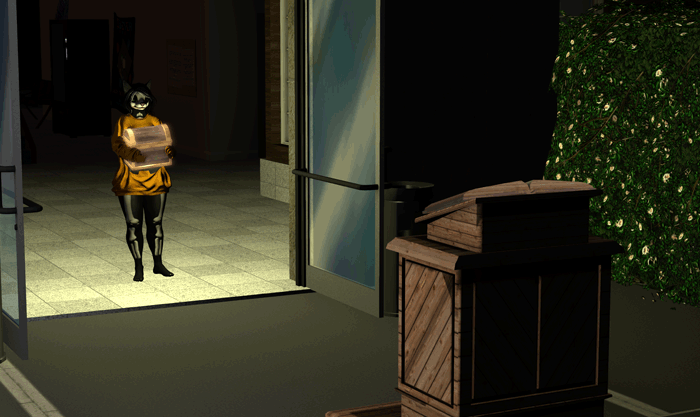
Win!
Depending on the game you are playing, you might need to find the treasure and bring it back without getting caught or trapped.
See Game Modes list above.
When you are done playing, simply detach the HUD.
That’s it!
I hope this guide was helpful and that you feel ready to jump into your first game of Fright!
If you have any questions or suggestions, feel free to use the contact form or just send me a message in Second Life.
Have fun, and happy hunting!
~Drau ♥
Credit to:
- Jasdac Stockholm for creating these games we enjoy.
- Kulza Bluestar for the continued development of Fright and assistance with this guide.
- Vergil Hellershanks for helping with the gameplay pictures.
Images taken in Second Life by Drau
Guide written by Drau